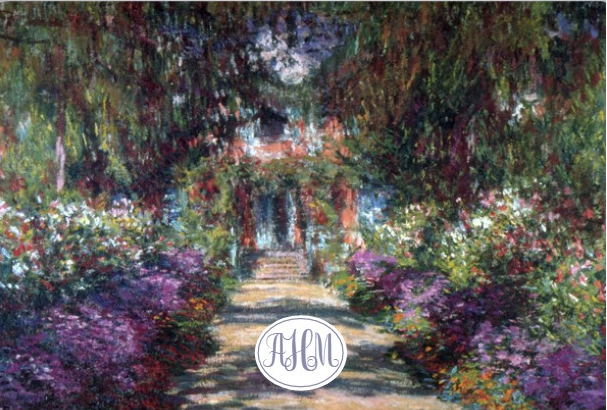
When I decided to do the Laptop Lingo, I wanted it to be something that either I would be working toward like a picture of where I wanted to go on vacation, or an inspiring scene that would help me to reset, relax, and gain creativity from when I was stuck on a project. After searching through my photos, I almost created a collage of photos, because I have a lot of landscape scenes that are gorgeous. After looking through the images on Decal Girl, I was torn between one of my photos and some of their images. In the end, I decided to go with one of their images because they had a little more polished look to them (and I found one that loved). The image I picked has a path leading through a garden of purple, pink, orange, white, and red flowers up to a beautiful brick house with white accents. I chose this classic Monet painting because it is relaxing and inspiring to me and reminds me of home.
Tutorial for Decal Girl:
- Go to Decal Girl.com
- Select Images from the top left menu
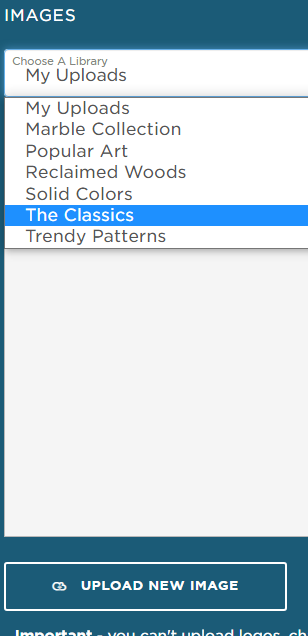
- If you don’t want to upload your own photo or design, click the drop-down menu and select one of their libraries
- After selecting the library click on the image to add it to your skin
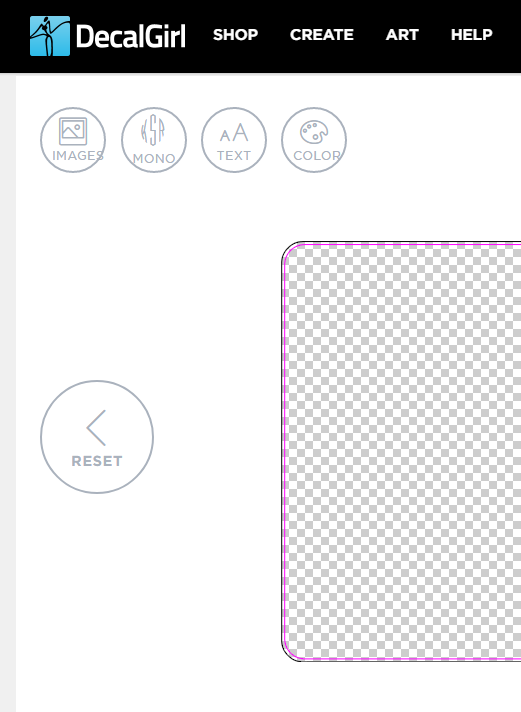
- There are several menus one on the left bottom and another on the right bottom that will help you in adjusting your image (shrink, rotate, flip, move to center etc…)
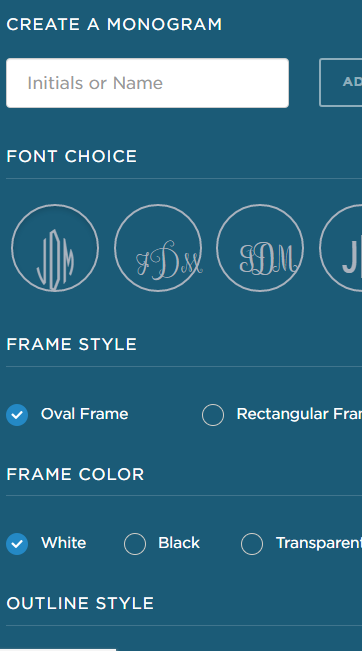
- To add a monogram to your image select Mono from the top menu and select your font choice, frame style, color and outline and then click add it
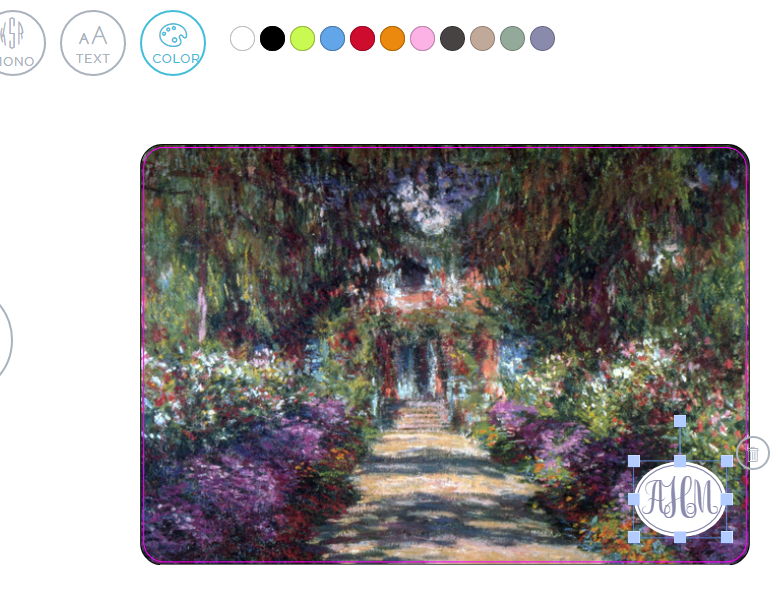
- You can then select the color circle and change the text of your monogram to a different color and also make it small or larger and place it wherever you want on the screen (I put mine in the center because I didn’t like it covering over the flowers)
- Select Next if you are finished on that page
- On the next screen, you can share your design, or purchase it