I lost power Tuesday night during our thunderstorm in Fredericksburg and wasn’t able to work on my computer to do homework as we lost power until 3 am in the morning. I had to charge my phone in my car because it was at 20% and I wanted to make sure that I woke up on time for work the next day. As I was sitting in the vehicle, I got to thinking about the class assignments and ended up taking several videos of the lightning because I was hoping to capture some of the lightning for either a video assignment or maybe to use next week for the final project. As I was sitting there I remembered that I had bookmarked A Word….A Picture….A Story video assignment as a possibility and began thinking about different words that represented what I was seeing. This is more fact-based video than a story based, but I’m happy with how everything turned out.
My Words: Rain, Grow, Lightning, Fertilize, Thunder, Balance
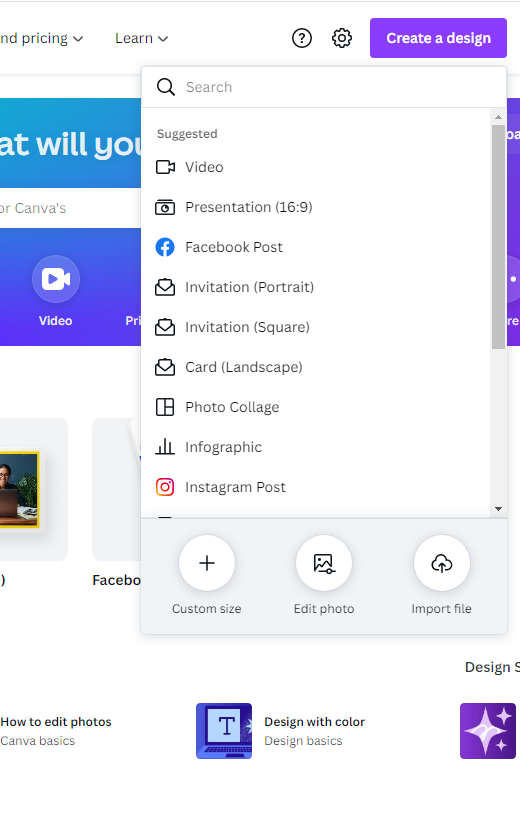
- Go to Canva.com, click on the blue Create A Design box in the upper right corner and then select a video from the drop-down menu
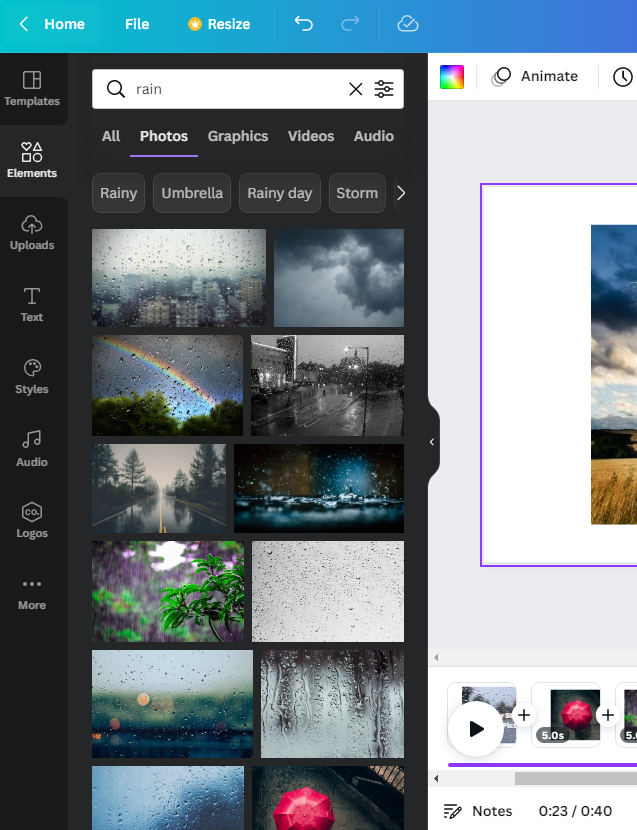
- You can upload your own photos or select elements and search for photos on the Canva site – I used the photos on Canva
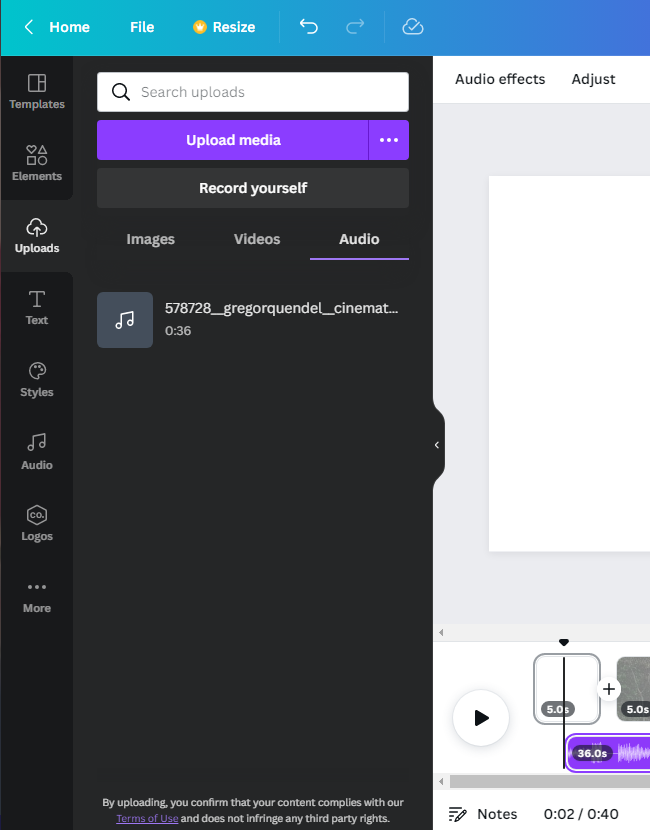
- Select Upload on the right menu to add your own audio – you can use Canva audio or upload your own by clicking on uploads and dropping your audio file in the box, I uploaded the audio from Sound Cloud
- To add the audio to your video, make sure you video is starting at 0.0 and then just click on the audio and it will add it to your video below your photos
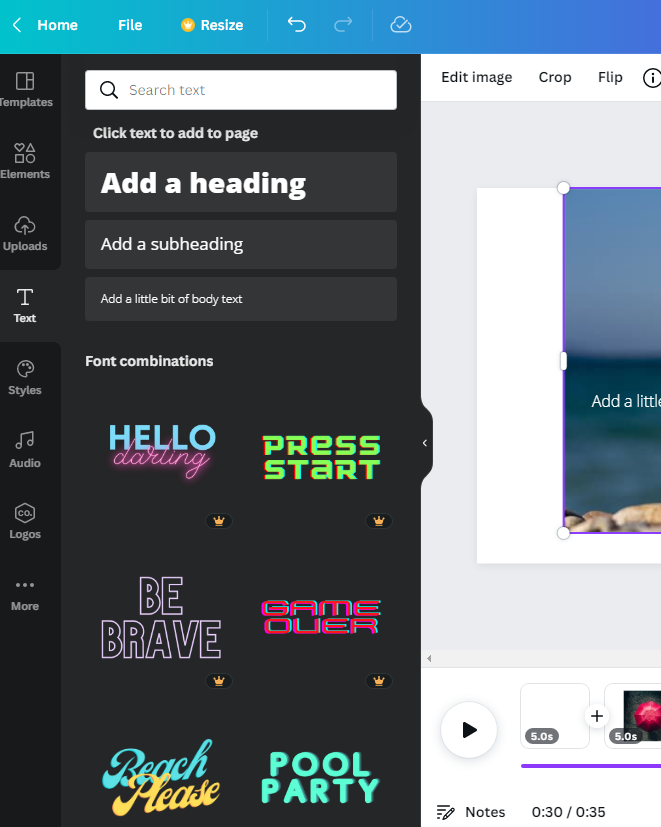
- To add text to your photos, click on the Text button and select Add a little body of text
- Change the color or sizing by using the menu across the top
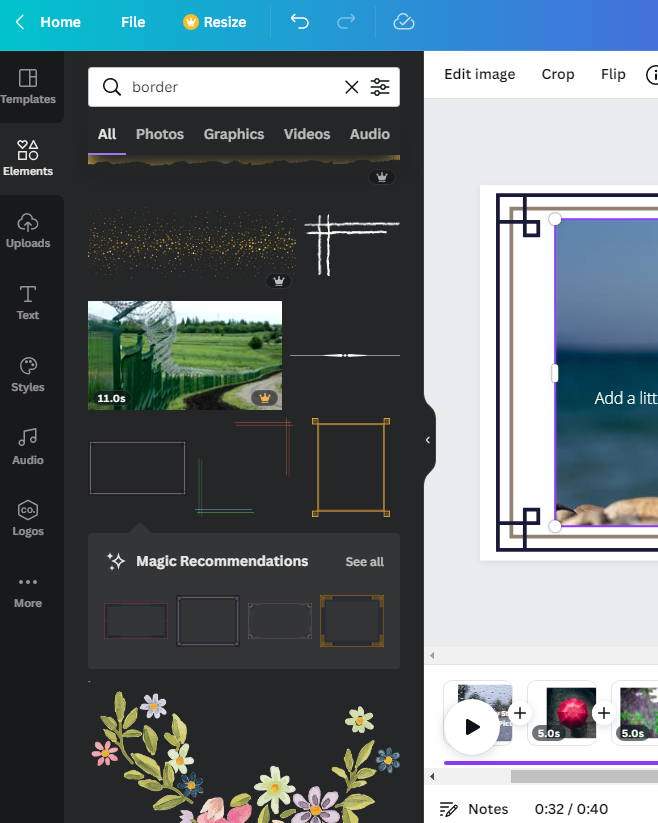
- I also added a border, by using the elements menu and searching for different borders and backgrounds
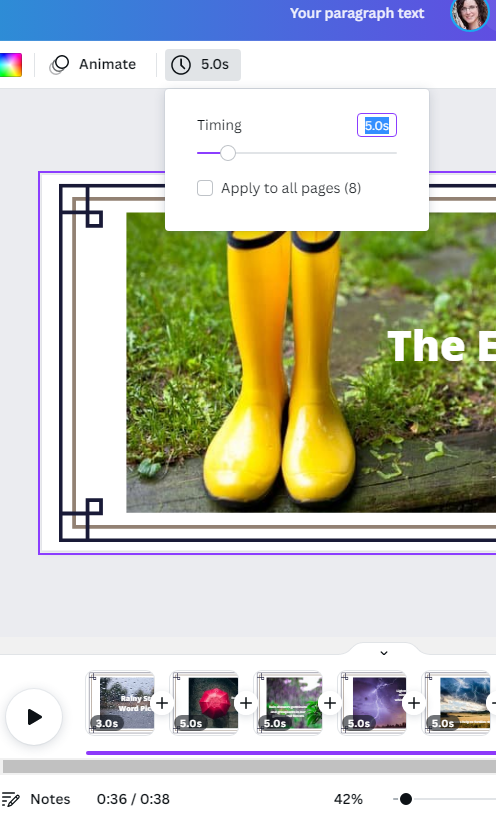
- If you need to change the time of each slide, click on the slide and then select the clock under the top menu and slide the white circle to the left or right to add or remove time
- Hit the play button on the bottom next to your pages to play the whole video and make adjustments as needed
- I added a transition between each slide by selecting the page and click on the 3 white dots in the purple rectangle – select Add Transition and then chose which one you want from the menu on the left – you can choose to use a different transition for each page or click Apply between all pages at the bottom
- When you are finished click on the Share button in the top right corner and select download and then upload it to YouTube – Canva doesn’t have a direct link to YouTube.