Draw It
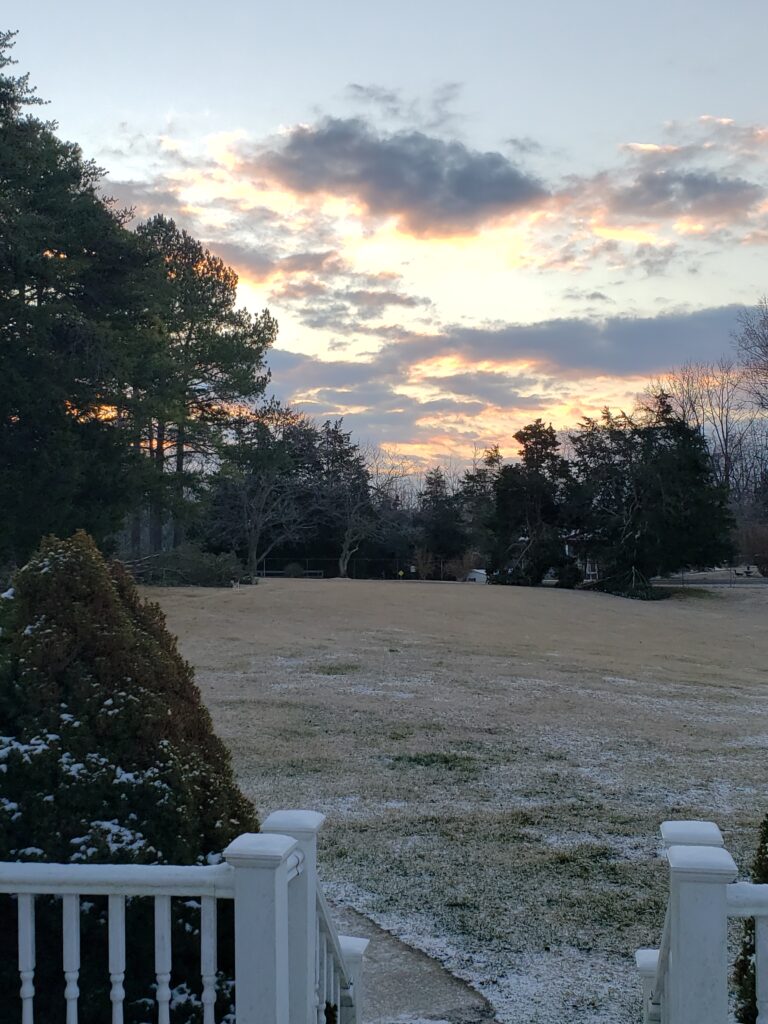
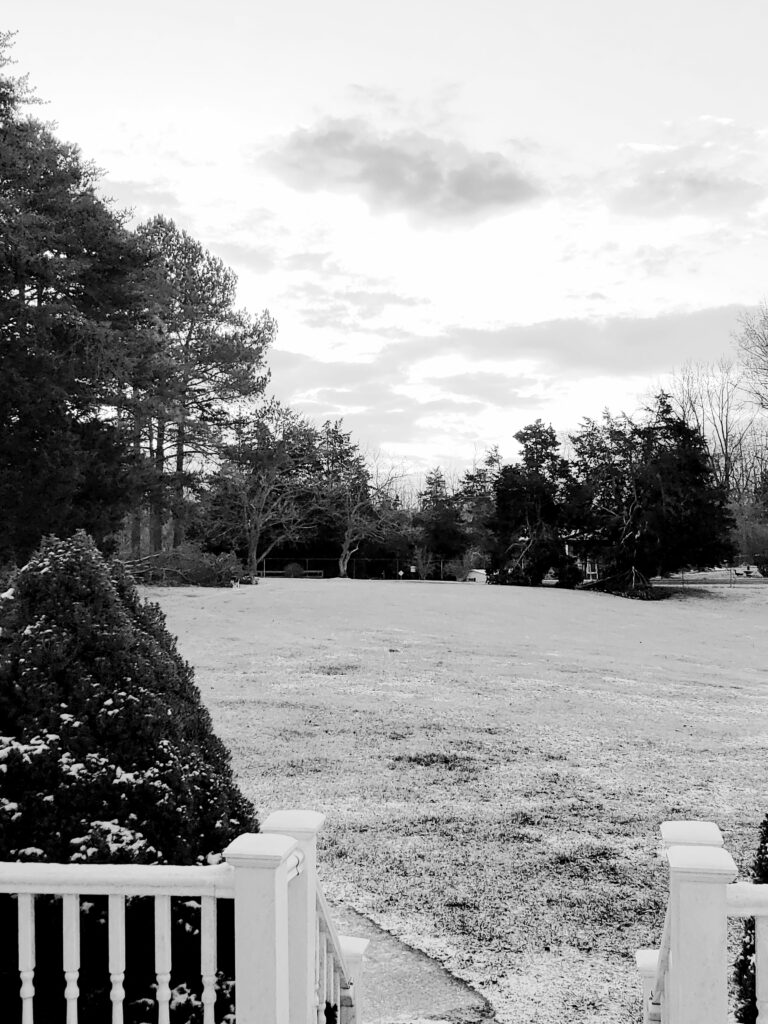
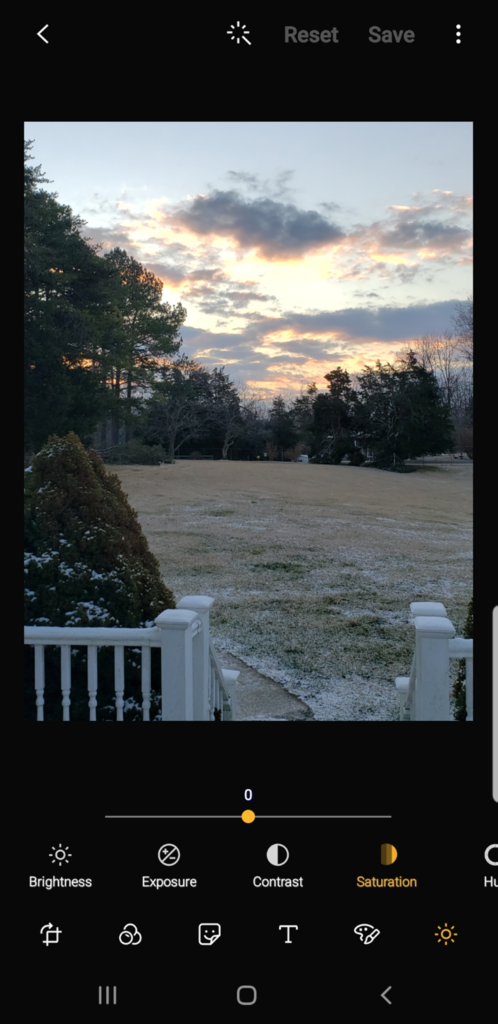
I’m an outside person, I love looking outside and seeing what new color the sky has become, or how the grass or trees are changing by the season. It is routine that I usually open my front door and check what the weather is doing and just smell the fresh outside air before getting ready for the day. This photo was taken on one of those kinds of mornings.
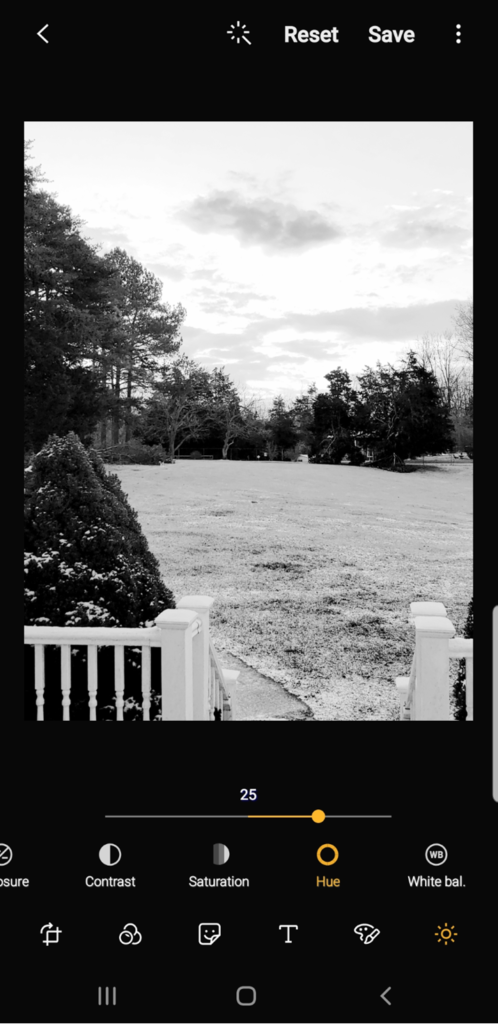
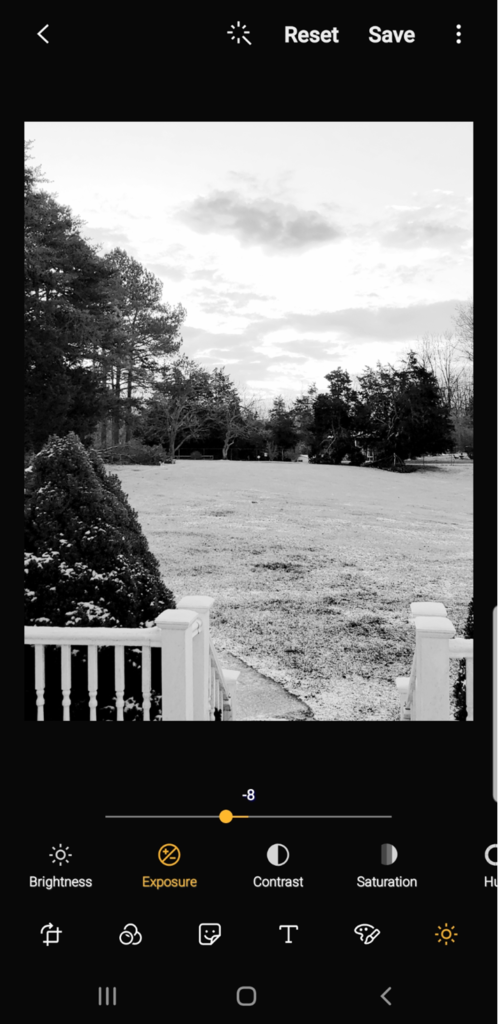
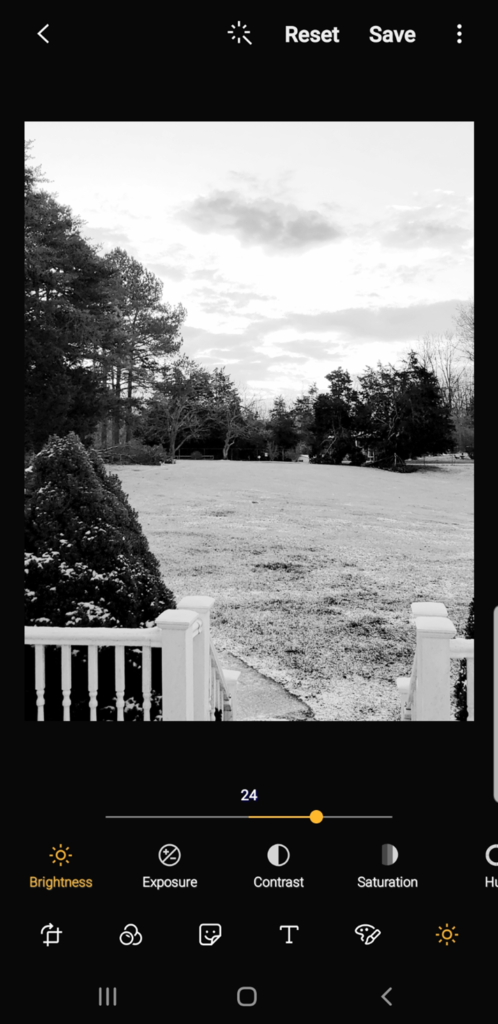
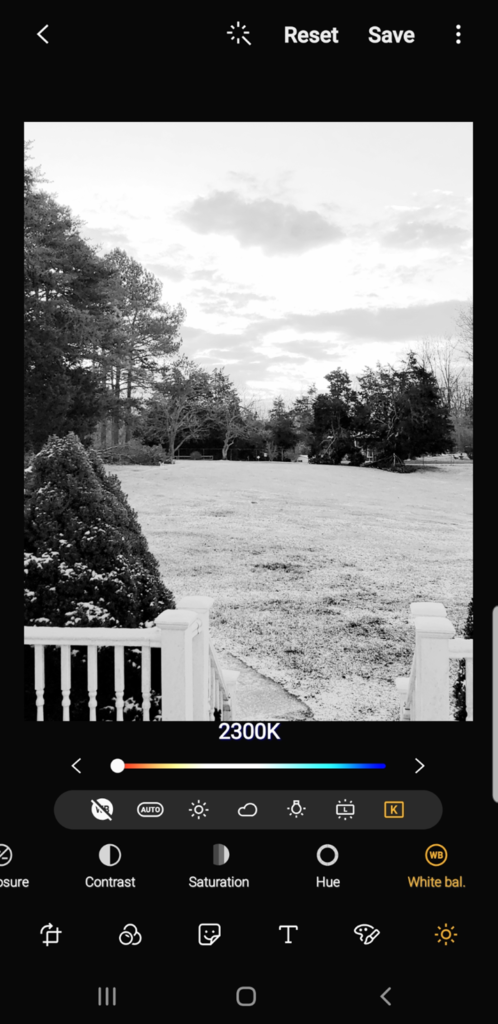
So for the Draw It, I wasn’t able to download GIMP (computer blocked it) or Photoshop (without paying for it), so I decided to see if this was something I could do on my phone’s photo editor before downloading something from the Google Play Store. Doing it this way probably took me a little longer because I was playing around with each selection to find the right levels of contrast, exposure, or brightness, but I enjoyed this part of the process. Figuring out what would work on each step was all part of the process and sometimes I had to go back and change something for the next step to layer on correctly. Seeing those blades of grass and tree limbs slowly change and sharpen into focus like someone was drawing them with a pencil was a lot of fun. The only thing that didn’t quite change the way I wanted was the posts of the porch with snow sitting on top, but since they started out white changing the saturation or hue wasn’t going to change them.
Step by Step Tutorial for Android Phones:
- Select the photo in your phone’s gallery and then select the “pencil editor button”.
- Select the button all the way to the right that looks like a sun – this brings up the brightness, exposure, contrast, saturation etc… features.
- Select the Saturation and drag the center orange dot on the line to -50
- Next, select the Hue and slide the orange dot to the right to 25
- Select Contrast and slide the orange dot to the right to 13
- Select Exposure and slide the orange dot to the left to -8
- Select Brightness and slide the orange dot to the right to 24
- Now select the White Bal. (last one on the right) on the White Balance menu, select the last one that is a K inside a box (this is the Kelvin temperature scale) move the white circle across the colored bar to 2900K, which is in the more orange area
- Lastly, select Save